Kayo TS70 Graphics Kit
Try a design on the TS70, then make it yours with AI, your logos and your race number.

Kayo TS70 Graphics Designs
6 kits to start from on the TS70. Pick one above to preview it, then recolor it, add your number or make it your own TS70 graphics.


Kayo Dirt Bike Graphics
The TS70 is Kayo's small four-stroke youth pit bike, with tiny knobby wheels and a low horizontal engine.
Use a simple two-colour tank block and reserve the small rear cover for one short name.
The linked manufacturer catalogue identifies this model without a verified model-year range here. Check the VIN/model year and the installed plastics with your printer; do not treat the current listing date as a model year.
- Tank-side covers / shrouds
- Use a simple two-colour tank block and reserve the small rear cover for one short name.
- Front number area
- Keep the main number on a solid contrasting field; inspect its size on the TS70 preview before adding smaller lettering.
- Rear side panels
- Place a short name or number on one continuous TS70 panel. Keep letters away from fasteners, panel gaps and the seat edge.
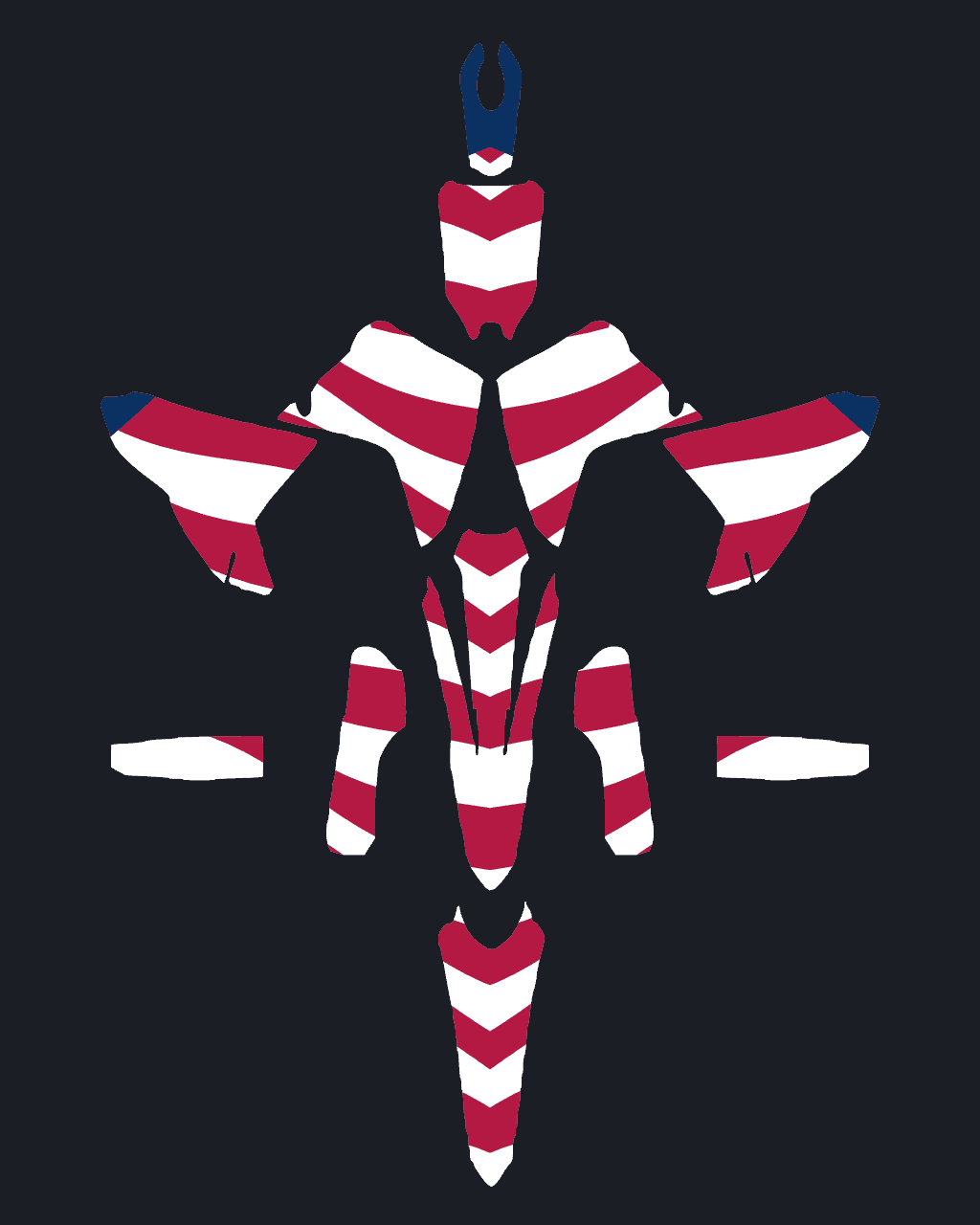
 2D preview
Design Your Own TS70 Graphics in the Editor
The editor shows the flat TS70 kit sheet next to a live view of the bike. Place a design, paint single panels, type your number or drop in a logo, and the bike updates as you work.
- Flip between the left and right side
- Mirror artwork across
- Gloss, matte, chrome or holographic
Neon green lightning on a midnight base
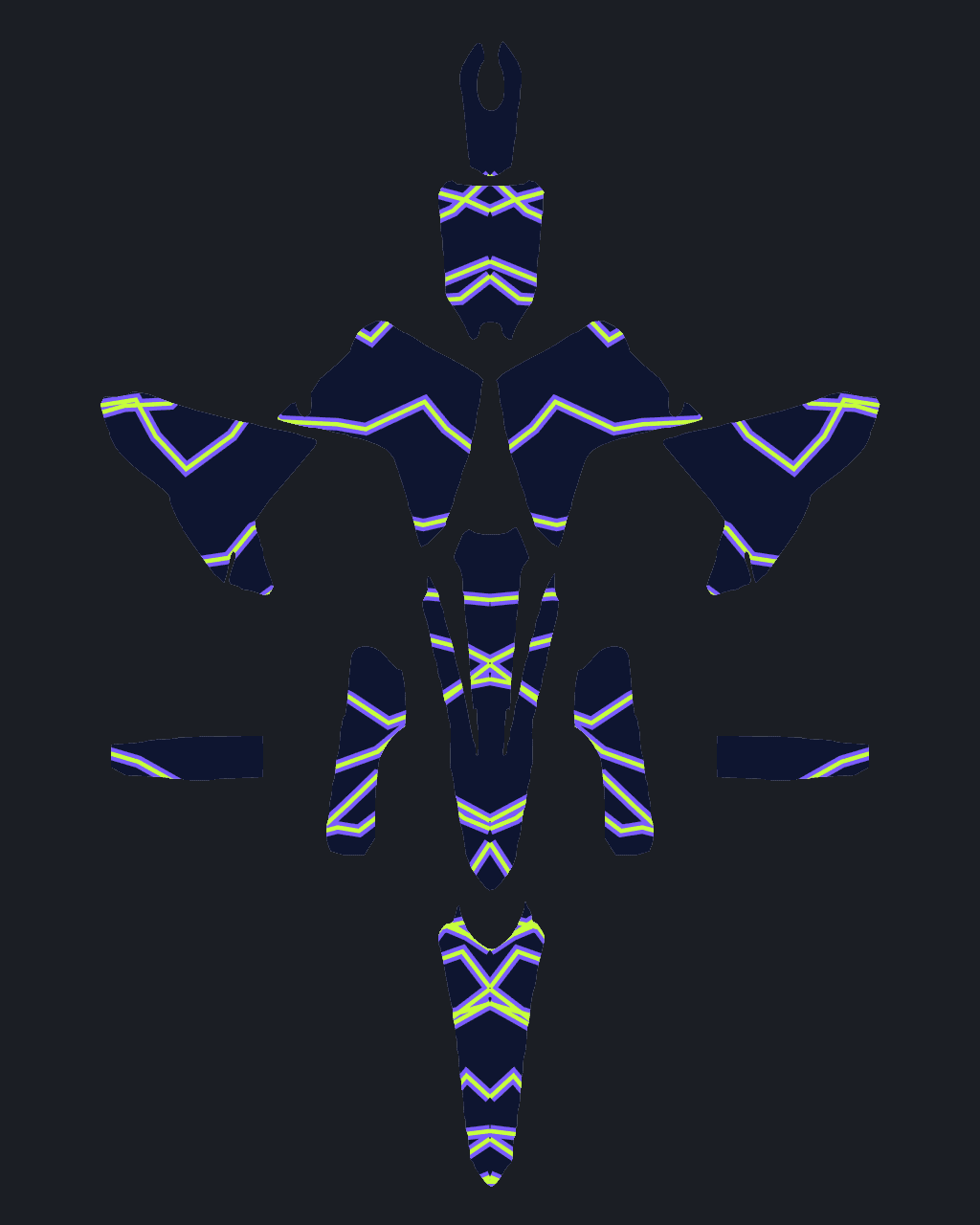
 2D preview
Custom TS70 Graphics with AI
Describe the kit you want or upload a reference photo, and the AI lays out a full, mirrored TS70 kit. Every AI design stays editable. Have your print shop check the final dimensions and cut lines.
- 10 credits from text
- 20 credits from a photo
- Mirrored on both sides
TS70 Graphics Fitment Guide
The manufacturer catalogue identifies this model, but no verified model-year range is listed here. Confirm the year on your bike before choosing a cut template. Match your installed plastics to a model-specific template with your printer.
The bike image is an illustrative design preview. Exported artwork needs sizing and cut-line review before production; printing and vinyl are supplied by your print shop.
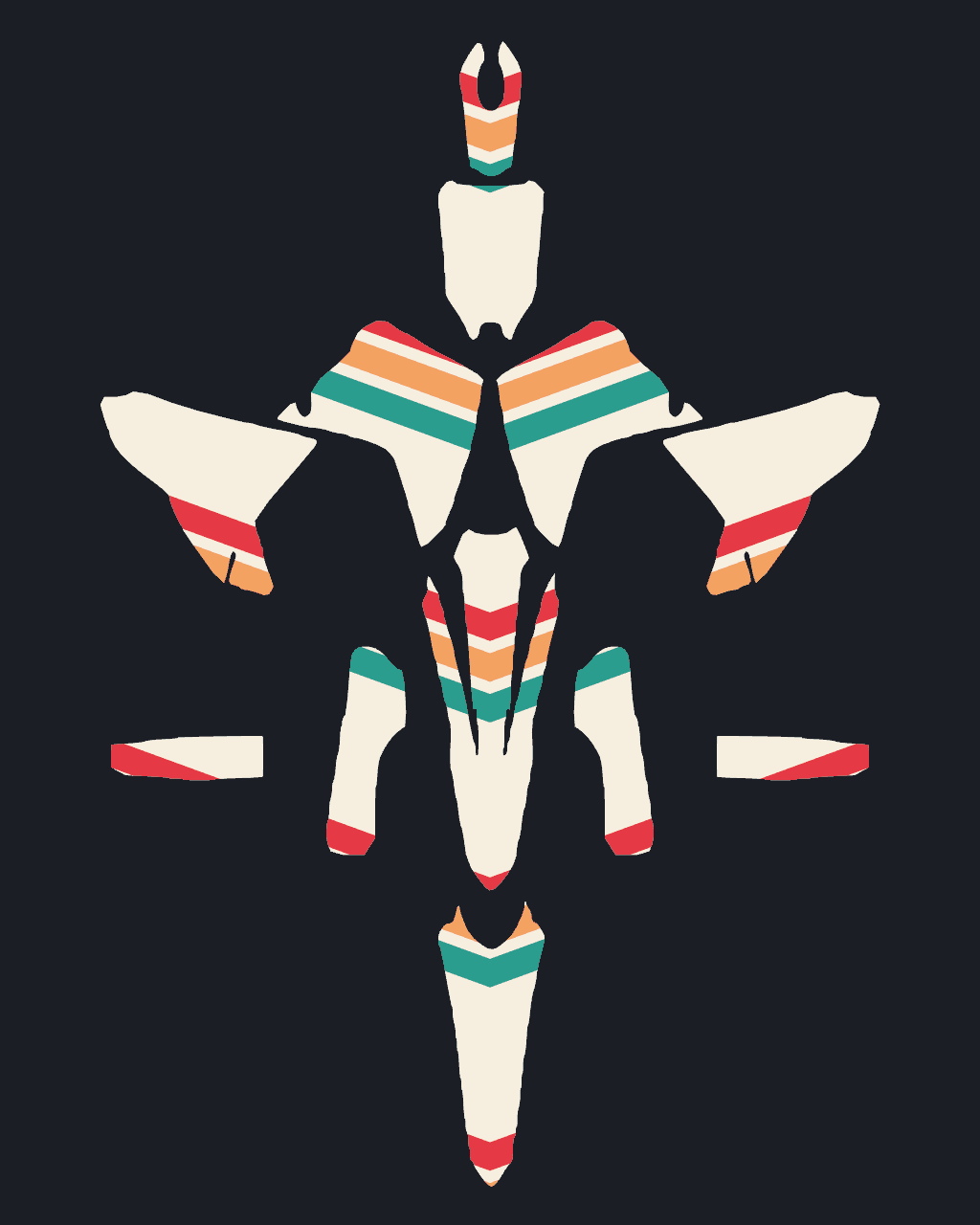
Kayo TS70 Graphics Kit Panels
The design sheet organizes artwork by panel, with matching left and right pieces to review with your printer. Check the artwork placement on the bike preview before exporting your design.
- 1Main side panelsthe main body covers, radiator shrouds or battery-side surfaces, depending on the model
- 2Upper body coverssmaller bodywork areas near the seat; check the fitted covers on your exact bike
- 3Front fenderlong and curved, read from above and from the front
- 4Front number platethe plate on the forks, where your number or headlight surround goes
- 5Fork guardsnarrow pieces that pick up color from the main kit
- 6Swingarm decalslong strips that protect the swingarm and carry a name or a small logo
- 7Seat coverprinted or plain, and a good spot for a brand or a stripe
- 8Rear fenderlong and tapered, the last thing riders behind you see
TS70 Design Guide
Three short guides written for the TS70: how to plan the kit, where numbers go, and how to match it to your riding.
TS70: model identity before artwork
The TS70 is Kayo's small four-stroke youth pit bike, with tiny knobby wheels and a low horizontal engine. Start the artwork on this model's preview rather than substituting a similarly named Kayo. Model identity and catalogue reference, not decal-template compatibility.

Planning the TS70 panel layout
Use a simple two-colour tank block and reserve the small rear cover for one short name. Build the main motif first, then inspect the preview and its mirrored view with a simple rider number. The white 2D base is an illustration for evaluating colour and composition; the opposing view is mirrored and is not a separate engineering reference.

TS70 catalogue reference and print handoff
The linked manufacturer catalogue identifies this model without a verified model-year range here. Check the VIN/model year and the installed plastics with your printer; do not treat the current listing date as a model year. Send the printer your exact model identity, photographs of the fitted plastics and exported artwork for sizing and cut-line review. Editing is free; AI generation and clean exports use credits, and physical printing is a separate service.
TS70 Color Ideas
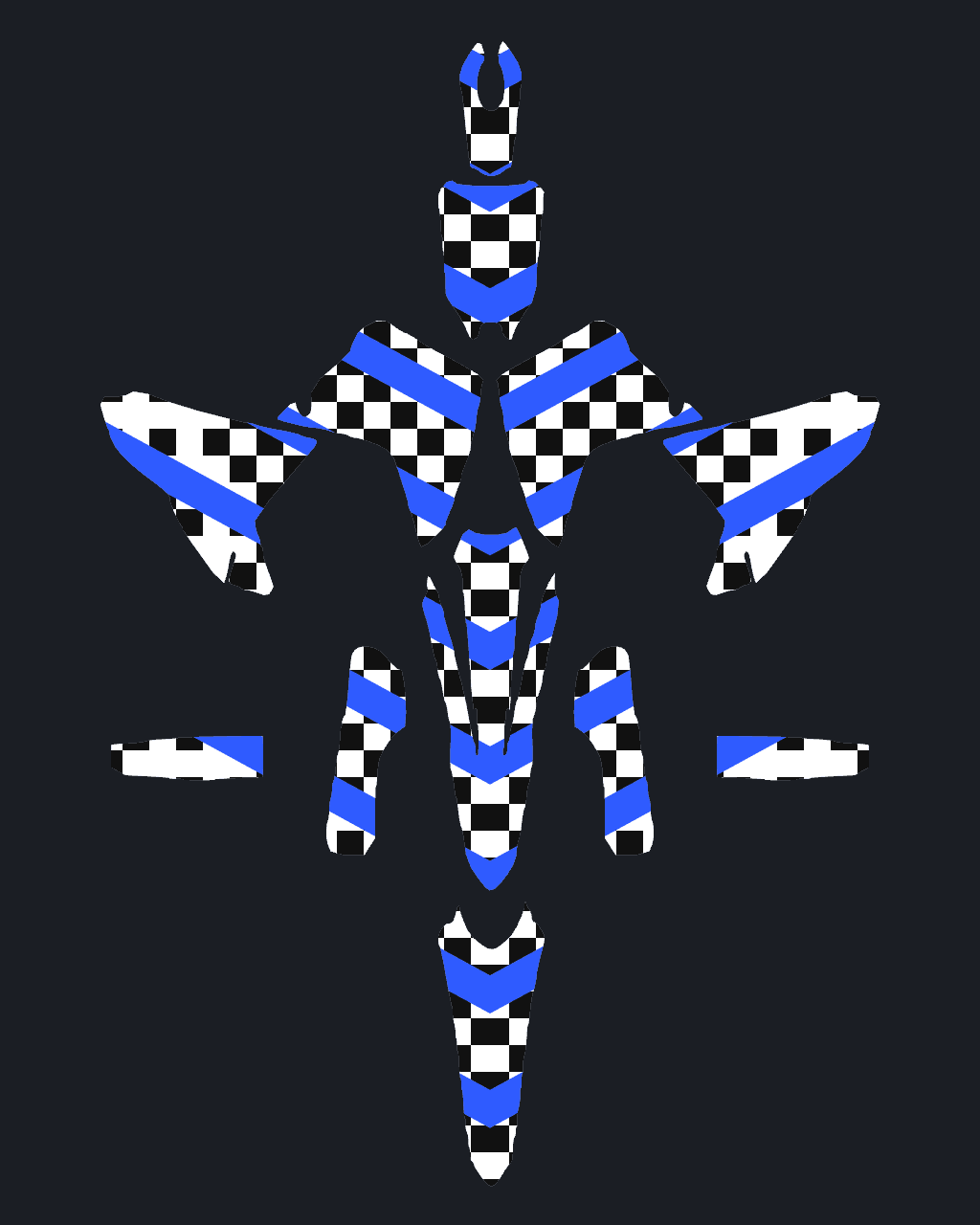
Three palettes shown on the bike. Apply one in the editor and keep designing from there.
Kayo accent
A Kayo-inspired palette around the white TS70 design preview. The illustration is not a stock-colour specification.
White and charcoal
Use the darker field behind the rider number, with the brand colour as a narrow connecting accent.
Bright mini
Keep the TS70 lettering short and the small panel shapes bold.
How to Install Kayo TS70 Graphics
You need a heat gun or hair dryer, a squeegee and isopropyl alcohol. Plan an hour or two for a full TS70 kit.
- 01Take the plastics offRemove the shrouds, fenders and plates from the TS70 and work on a clean bench. Loose panels are far easier to wrap than panels on the bike.
- 02Strip the old decalsWarm old graphics with a heat gun or hair dryer and peel them slowly at a low angle. Remove leftover adhesive with an adhesive remover.
- 03Clean and degreaseWash the plastics, then wipe them with isopropyl alcohol so no oil or silicone is left. Let them dry completely.
- 04Line up each graphicPeel back only the first few centimeters of backing, line the graphic up against the panel's edges and holes, and tack it down.
- 05Lay it from the middle outPull the backing off as you go and push the vinyl down from the center outward with a squeegee or your thumb, chasing air toward the edges.
- 06Heat the curves and edgesWarm the vinyl around tight curves and edges so it stretches and settles, then press the edges down firmly. For the TS70, first match the installed plastics and the printer's cut-line file. Keep vinyl away from the four-stroke engine and exhaust header, vents, access openings and moving parts. Follow your vinyl supplier's preparation instructions.
Cost of a Custom Kayo TS70 Graphics Kit
Designing a TS70 kit costs nothing. You only spend credits on AI designs and on the clean HD export you send to the printer. Printing is paid to the shop you choose.
Styles That Suit the TS70


Kayo TS70 Graphics Kit FAQ
01Which bikes does this Kayo TS70 graphics kit fit?
This is an artwork preview for the Kayo TS70. The manufacturer catalogue identifies this model without a verified model-year range here. Have your printer confirm the exact year, installed plastics and cut lines. The KMB, TS90, TD110 and TD125 have their own page and kit.
02Does the TS70 kit fit the KMB, TS90, TD110 and TD125?
Bikes in the same Kayo family often have similar plastics, but shapes can differ around the shrouds, side panels and plates. Use the kit made for your exact bike, and check with your printer before using one kit for two bikes.
03What distinguishes the TS70 in this catalogue?
The TS70 is Kayo's small four-stroke youth pit bike, with tiny knobby wheels and a low horizontal engine.
04What should I check before printing TS70 graphics?
The linked manufacturer catalogue identifies this model without a verified model-year range here. Check the VIN/model year and the installed plastics with your printer; do not treat the current listing date as a model year.
05Which layout works well on the TS70?
Use a simple two-colour tank block and reserve the small rear cover for one short name.
06Is the TS70 preview a factory parts or fitment drawing?
No. It is an independent white-background 2D artwork illustration. The manufacturer catalogue confirms the model identity; it does not certify our generated image, dimensions or decal cut lines.
07Are TS70 graphics the same as TS70 decals or a wrap?
Riders use all three words for the same thing: printed, die-cut vinyl that covers the TS70's plastics. A "kit" means the full set of panels designed to work together.
08Can I see the TS70 kit on the bike before I pay?
Yes. Designing and previewing are free. The 2D preview includes a front angle and a mirrored view; models with a 3D viewer can also be rotated in the designer.
09Can I add my child's name and number to the TS70?
Yes. Type it in the Text panel and place it on the plates in one click. Numbers read the right way on both sides of the bike, and you can add a name across the rear fender or the shrouds.
10Can I put my own logo or artwork on the kit?
Yes. Upload a sponsor logo, team badge or photo, place it on any panel, then scale, rotate and recolor it.
11Can I leave some panels plain?
Yes. Paint any panel a solid color, or clear the artwork from it. Plain plastics next to a busy shroud graphic often look the most professional.
12What do I get with the HD export?
Clean high-resolution preview images and a flat artwork sheet without a watermark. The TS70 export costs 30 credits; confirm physical dimensions and cut lines with your printer before printing.
13Is this a TS70 graphics kit I design myself?
Yes. You design it here, export the HD sheet, and have it printed and cut by the print shop of your choice. That keeps you in control of the design, the vinyl and the price.
14Can I share my TS70 design?
Yes. Create a share card or a link, and anyone can open the design and see it on the bike.
15How much does an AI design cost?
10 credits from a text prompt, or 20 credits from a photo. Credits come in one-time packs, from 200 credits for $9.90.
16Do credits expire?
No. Credits are a one-time purchase with no subscription, and they never expire.
More Kayo graphics
Other Kayo models you can design kits for — same brand family, separate fitment.
Popular styles for the TS70
Related guides
How each laminate looks, wears and cleans on a dirt bike.
A practical workflow for designing a full graphics kit: picking a base, building contrast, placing numbers and logos, and checking both sides.
Contrast, size and font tips so your number is readable at speed.
Prep, heat and squeegee technique for a clean graphics install on motocross plastics.
Explore more
Related bikes


Start your TS70 kit
Pick your bike, design the kit, and only pay for AI designs and HD exports.
Start designing